
Researched, not hands-on tested. This guide is education, not financial advice.
As an Amazon Associate I earn from qualifying purchases.
First, the one-sentence version
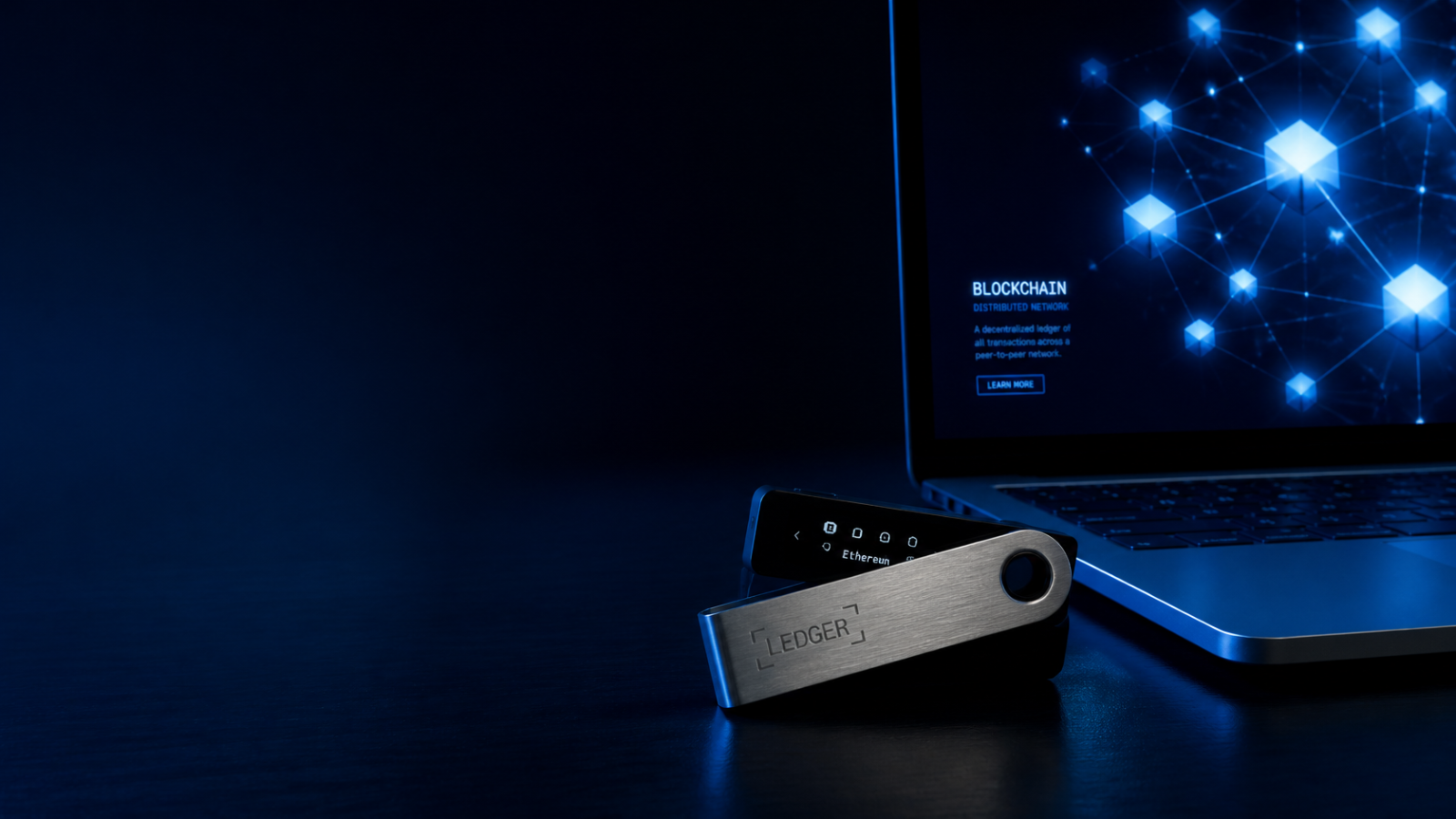
A bitcoin hardware wallet is a small, dedicated device that keeps the private keys to your crypto offline — on the device itself, never on your internet-connected computer or phone — and asks you to physically confirm every transaction on its own screen before anything moves.
That’s the whole idea. Everything else is details, and the details are friendlier than they look.
What “self-custody” actually means
When you buy bitcoin on an exchange, the exchange holds the keys. You have an account balance and a password, and you are trusting the company to keep the coins safe, stay solvent, and let you withdraw when you ask. That’s custody — someone else holds the asset for you, much like a bank holds your money.
Self-custody flips that arrangement. You hold the private keys yourself, which means you — and only you — can authorize transfers. Nobody can freeze your balance, and nobody can lose your coins in a corporate collapse. The trade-off is equally absolute: nobody can reset your password either. If you lose your keys and your backup, there is no support line on Earth that can restore your funds. That’s not a flaw in the system; it is the system.
A useful way to think about it: an exchange account is like money in a bank. A hardware wallet is like cash in a safe at home — except the “cash” lives on a global ledger, and the safe holds the only key that can move it.
What a hardware wallet does
It keeps your keys offline
Your private keys are generated on the device and never leave it. The device connects to your computer or phone only to receive unsigned transactions and return signed ones. Even if the computer is riddled with malware, the keys themselves are never exposed to it. Most current devices add a Secure Element — a chip designed to resist physical extraction — on top of that isolation. The Ledger Nano S Plus, Ledger Nano X, Trezor Safe 3 and Trezor Safe 5 all use Secure Elements certified at CC EAL6+, with one exception worth knowing: the Nano X’s chip is certified EAL5+, one level lower.
It makes you verify on a screen you can trust
Your computer screen can lie to you. Malware can swap a destination address on your display while sending a different one to be signed. A hardware wallet’s own screen shows the address and amount as the device sees them, and nothing is authorized until you physically confirm — with buttons or a touchscreen — on the device. This “what you see is what you sign” check is the single most important habit in self-custody.
It protects access with a PIN
Lose the device and a finder still faces a PIN on the hardware itself. The device is a signing tool, not a vault of coins: the coins remain on the blockchain, and your backup (below) is what restores access on a new device.
What a hardware wallet does NOT do
This part matters just as much, because most losses happen where a hardware wallet can’t help.
- It doesn’t stop you from approving a bad transaction. If you confirm a transfer to a scammer’s address on the device screen, the device will sign it happily. It verifies that you approved — not that you should have.
- It doesn’t protect a seed phrase you give away. No legitimate company will ever ask for your recovery words. Anyone who does is robbing you, full stop.
- It doesn’t make your crypto “stored inside” it. Unplug it, lose it, break it — your assets are untouched, because they were never in the device. The keys are the access; the backup is the recovery.
- It doesn’t remove the need for care. It shrinks the attack surface from “the entire internet” to “your desk drawer and your decisions.” That’s a huge improvement, not invincibility.
The seed phrase: the part everyone stresses about
During setup, the device generates a recovery phrase — a list of 12, 20 or 24 ordinary words, shown once on the device screen. (The Trezor Safe 3 and Safe 5 support 12, 20 or 24 words and an Advanced Multi-share Backup that splits the secret into multiple shares; Ledger devices follow the same 24-word tradition.) Those words are a human-readable copy of your master key. Whoever has them has your funds. Whoever loses them, and loses the device, loses access.
Three rules cover almost everything:
- Write them on paper (or stamp in metal), by hand, at setup. Never type them into a phone, a computer, a cloud note or a “wallet backup” website.
- Store the paper like it is the money — because it is. Somewhere private, dry and fire-aware.
- Never share them, ever, with anyone, for any reason. Not “support,” not a “verification” page, not a friend who is “helping.”
Yes, it’s old-fashioned. The most advanced cryptography in consumer finance ends with a pencil, and that’s honestly part of the charm.
Setting one up safely: the generic flow
Exact screens differ by brand, and you should always follow the manufacturer’s own instructions — but every reputable device follows the same arc:
- Buy from the manufacturer or an authorized seller. Seals and boxes can be faked; the device’s own genuineness check matters more, and both Ledger and Trezor apps verify their devices during setup.
- Initialize it yourself. A new device must generate its phrase during your setup. If a device arrives with a phrase already written down or pre-configured, it is not new — stop and return it.
- Set a strong PIN that isn’t your birthday.
- Write down the recovery phrase offline, exactly as shown, and double-check every word.
- Install the companion app (Ledger Wallet or Trezor Suite) from the manufacturer’s official site only.
- Send a small test amount first. Get comfortable receiving and sending a little before moving anything significant. Confidence is a feature; practice builds it.
Common beginner mistakes (all cheap to avoid)
- Photographing the seed phrase “just for a second.” That photo syncs places you didn’t intend. Don’t.
- Buying a “pre-configured” or secondhand device. Ever.
- Skipping the on-device address check because the computer screen “looked right.”
- Keeping everything on the exchange and everything in one wallet forever. Many holders split: spending amounts stay convenient, long-term savings go to cold storage. Think in tiers.
- Telling the internet what you hold. Discretion is a security layer that costs nothing.
The wallets referenced in this guide
The four current, beginner-appropriate devices below are the ones we compare head-to-head in our companion piece, Ledger vs Trezor: Which Hardware Wallet Should You Buy in 2026? — all four are wired USB-C devices except the Nano X, which adds Bluetooth for phone use.
Ledger
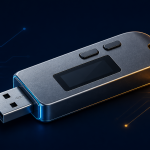
Ledger Nano S Plus
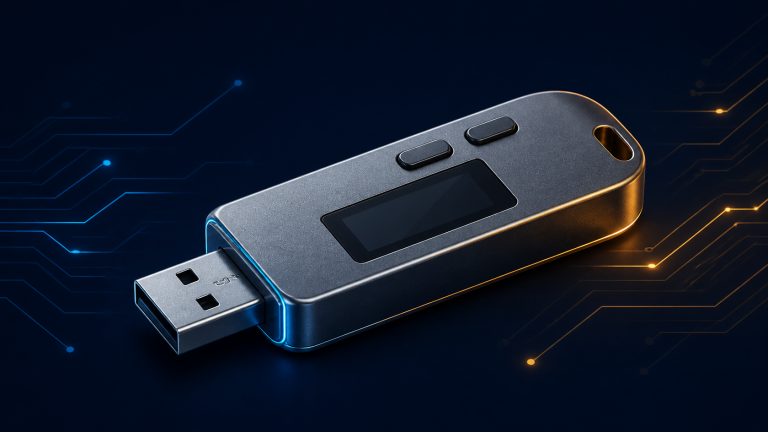
The Ledger Nano S Plus is Ledger's wired, entry-level signer for desktop and Android users who want offline key storage without wireless features.
- Secure Element: ST33K1M5, CC EAL6+ certified
- Display: 1.1" monochrome OLED 128×64
- Connection: USB-C only (desktop and Android); no Bluetooth
As an Amazon Associate I earn from qualifying purchases.
Ledger
Ledger Nano X
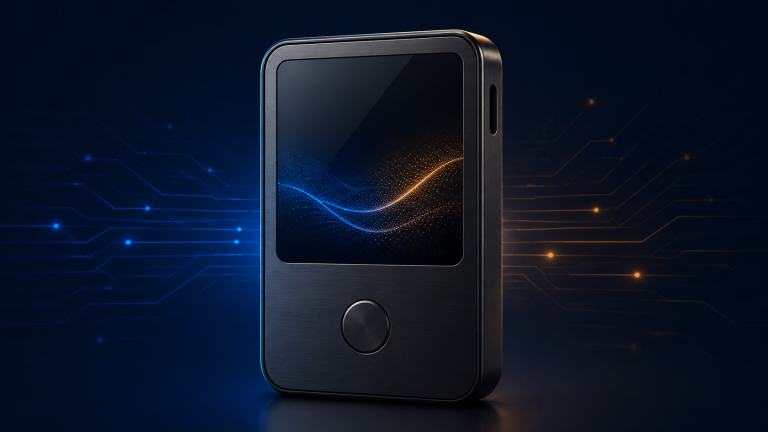
The Ledger Nano X is Ledger's Bluetooth-enabled Nano signer, built for users who manage crypto from a phone as well as a desktop.
- Secure Element: ST33J2M0, CC EAL5+ certified
- Display: 1.1" monochrome OLED 128×64
- Connection: Bluetooth BLE 5.2 for smartphones (iOS/Android) + USB-C for desktop/Android
As an Amazon Associate I earn from qualifying purchases.
Trezor
Trezor Safe 3
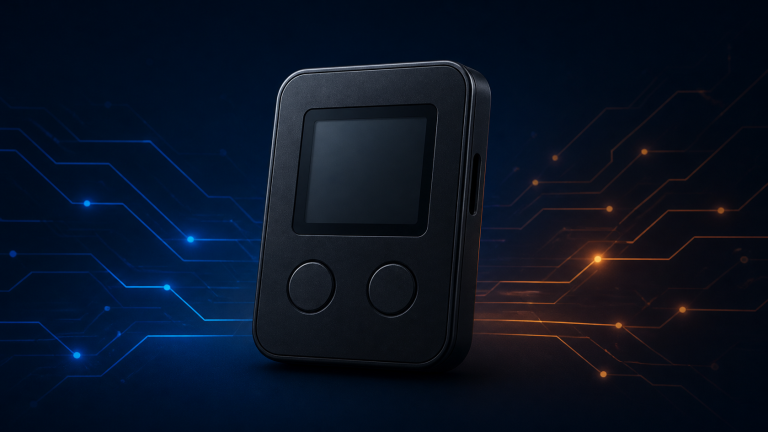
The Trezor Safe 3 is Trezor's entry-level Safe-series wallet, combining its open-source design approach with a certified Secure Element for the first time in its entry line.
- Secure Element: OPTIGA Trust M (V3), CC EAL6+
- Display: 0.96" monochrome OLED 128×64, two buttons
- Connection: USB-C only (power and data; USB-C to USB-C cable included); no Bluetooth
As an Amazon Associate I earn from qualifying purchases.
Trezor
Trezor Safe 5
The Trezor Safe 5 is Trezor's touchscreen Safe-series wallet, designed for users who prefer on-device entry and clearer transaction review than a two-button interface offers.
- Secure Element: OPTIGA Trust M (V3), CC EAL6+ "NDA-free"
- Display: 1.54" color touchscreen 240×240 px, Gorilla Glass 3, haptic feedback
- Connection: USB-C only; MicroSD slot; no Bluetooth; no battery (USB powered)
As an Amazon Associate I earn from qualifying purchases.
FAQ
Is a hardware wallet only for large amounts?
Not necessarily, but there’s a sanity threshold: the device should cost a small fraction of what it protects. For small learning amounts, a reputable software wallet on your phone is a reasonable classroom. As the amount starts to feel like real money — the kind you’d be upset about for a week — dedicated hardware earns its place.
What happens if I lose or break the device?
You buy another hardware wallet (any compatible brand), enter your recovery phrase, and your accounts reappear. The device is replaceable; the phrase is the actual key. This is why the backup rules above are the whole game.
Does it work for coins besides Bitcoin?
Yes — modern devices are multi-asset. Ledger lists 500+ assets in its own app and thousands more through third-party wallets; Trezor likewise supports thousands of coins and tokens. The security model is identical for each: keys offline, confirmation on-device.
Can a hardware wallet be hacked?
The device itself is built to resist key extraction, and keeping keys offline removes the entire category of remote theft. The realistic risks are human ones — a leaked seed phrase or a carelessly approved transaction — which is why this guide spends more words on habits than on chips.
The Bit Take
A hardware wallet is a tiny bouncer for your keys: it does one job, offline, and asks you to nod before anything moves.
Learn the seed-phrase rules once, practice with a small amount, and self-custody stops being scary and starts being boring — exactly how security should feel.
Ledger Nano S Plus
Check price on Amazon